Clap, the screenshot and screen recording app for Mac and Windows: Capture anything.Make it look incredible.

Capture screenshots, recordings and whole scrolling pages, then mark them up, frame them beautifully and share them in seconds.

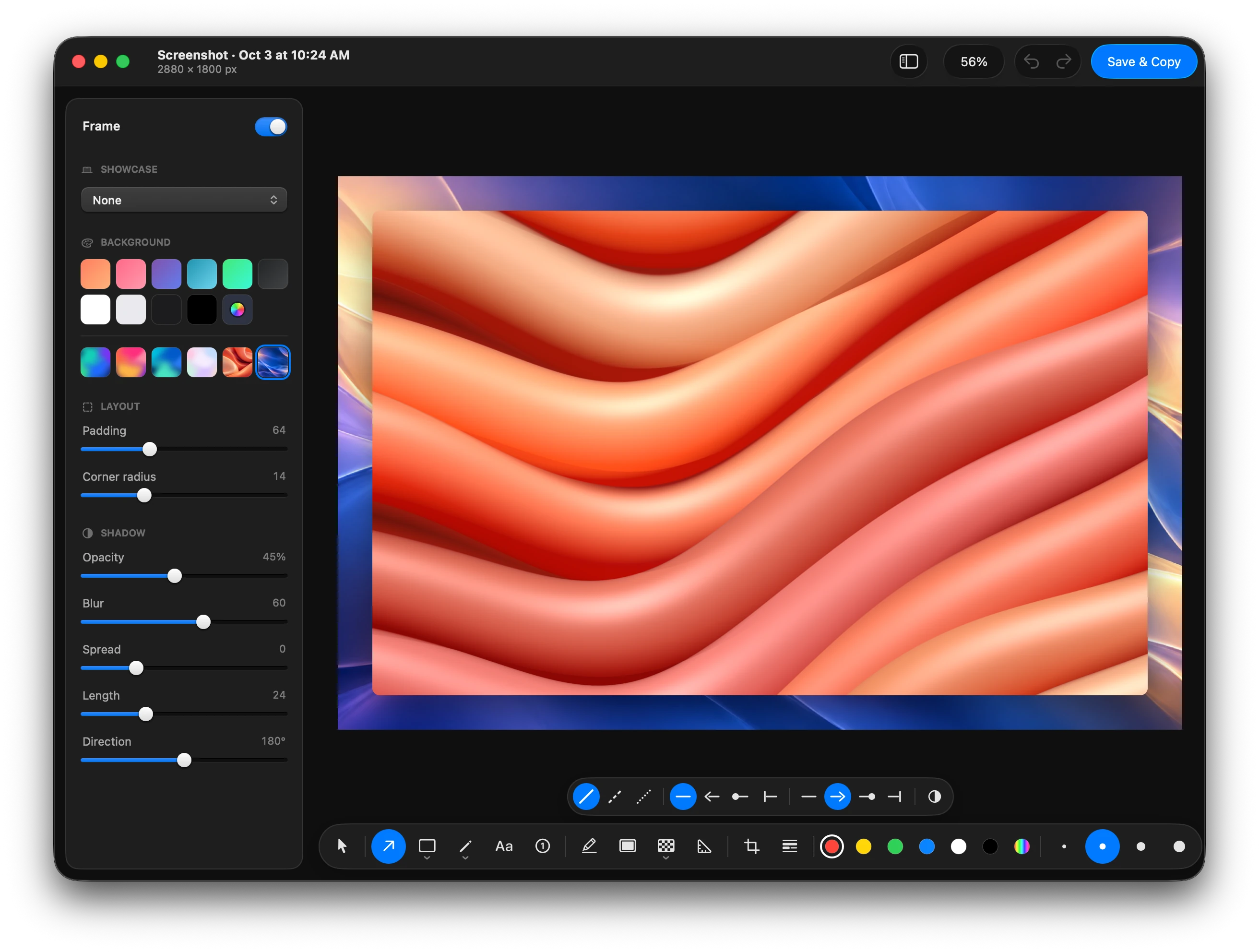
Clap’s screenshot editor: a screenshot framed on a blue and gold wallpaper, the Frame panel open, its tools in the dock below and the arrow’s styles over them.

From a keystroke to a link.Everything in between, in Clap.

Mark up

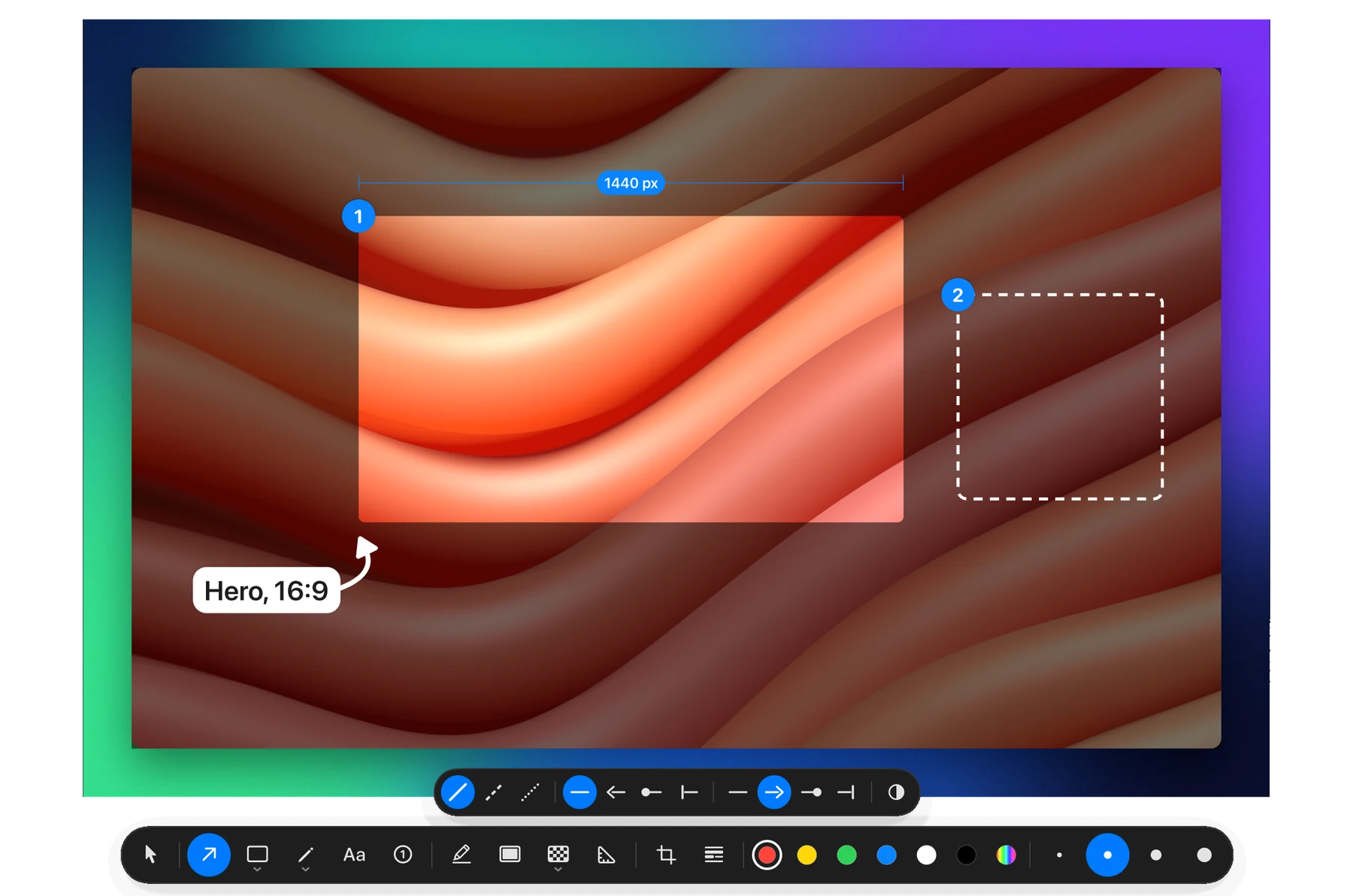
Mark it up in seconds. Arrows, shapes, steps, spotlights, measures, blur and text, each a key away.

Clap’s screenshot editor marking up a screenshot: a 16:9 part of it spotlit as step 1 with its width measured, a dashed square as step 2, a label on a pill with a curved arrow to the first; the arrow’s styles and the editor’s tools below

Colour

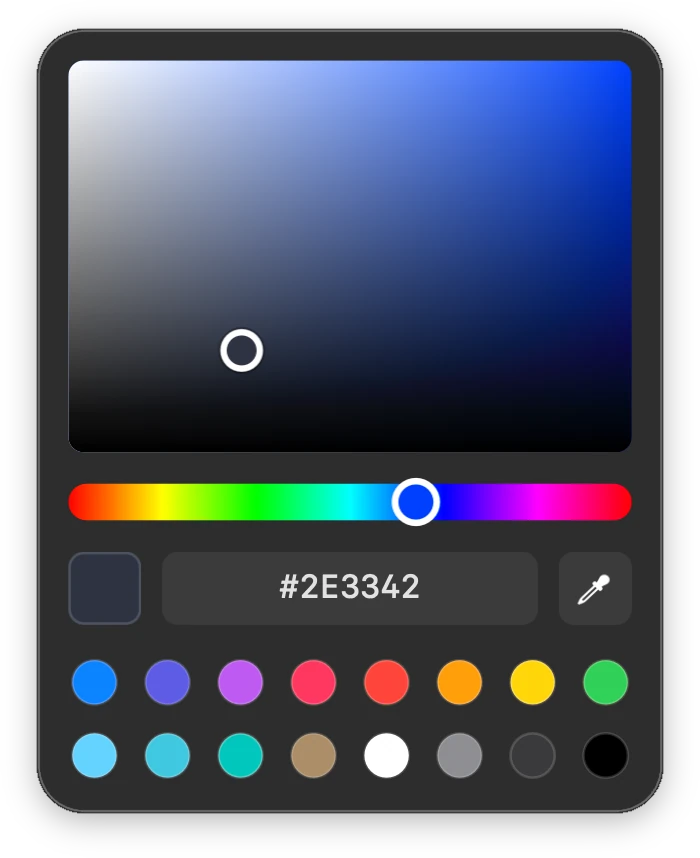
Every colour, exactly. Pick it, type its hex or take it straight off the screen.

Clap’s colour picker

Capture

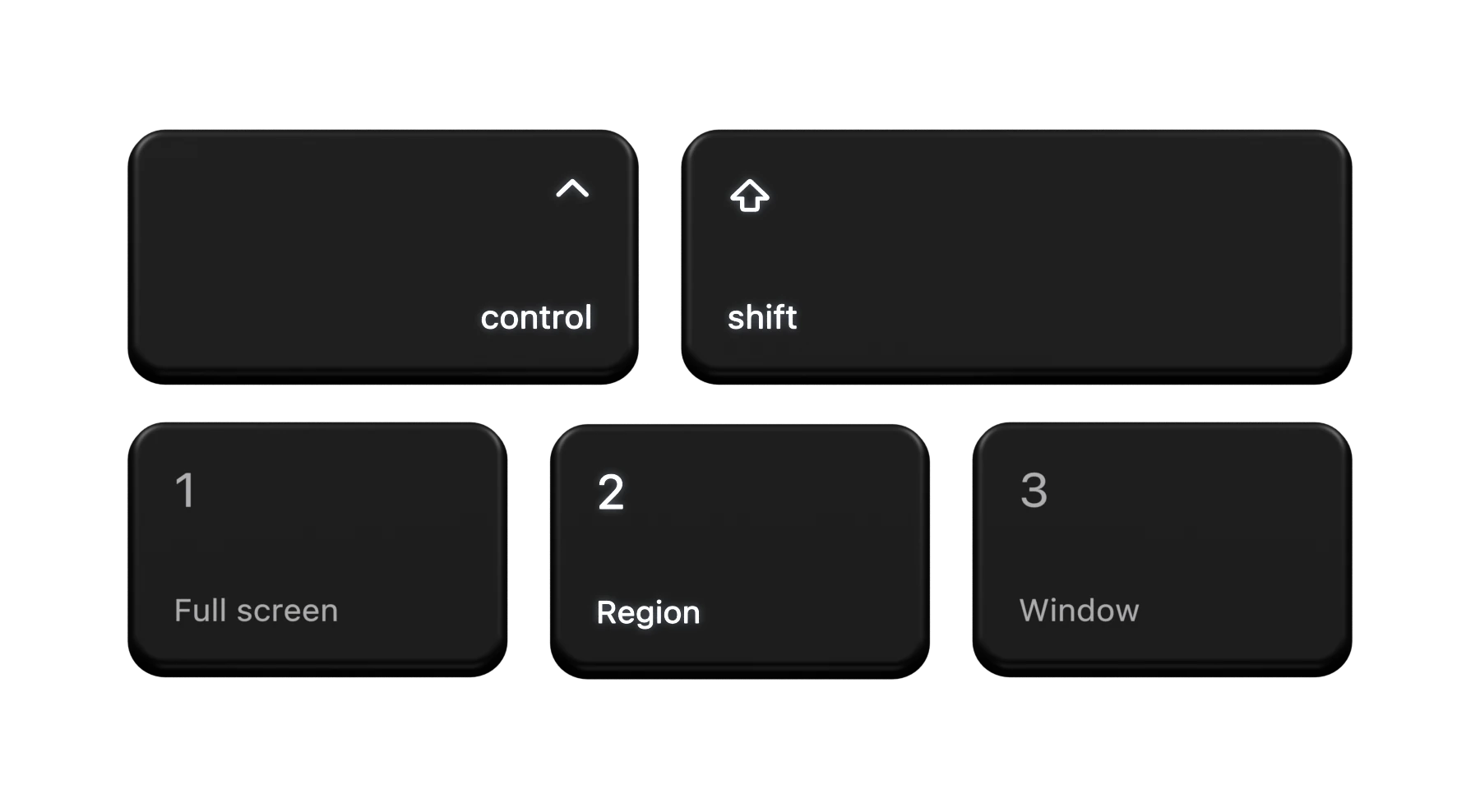
Capture in a keystroke. A region, a window or the whole screen, copied and saved.

Frame

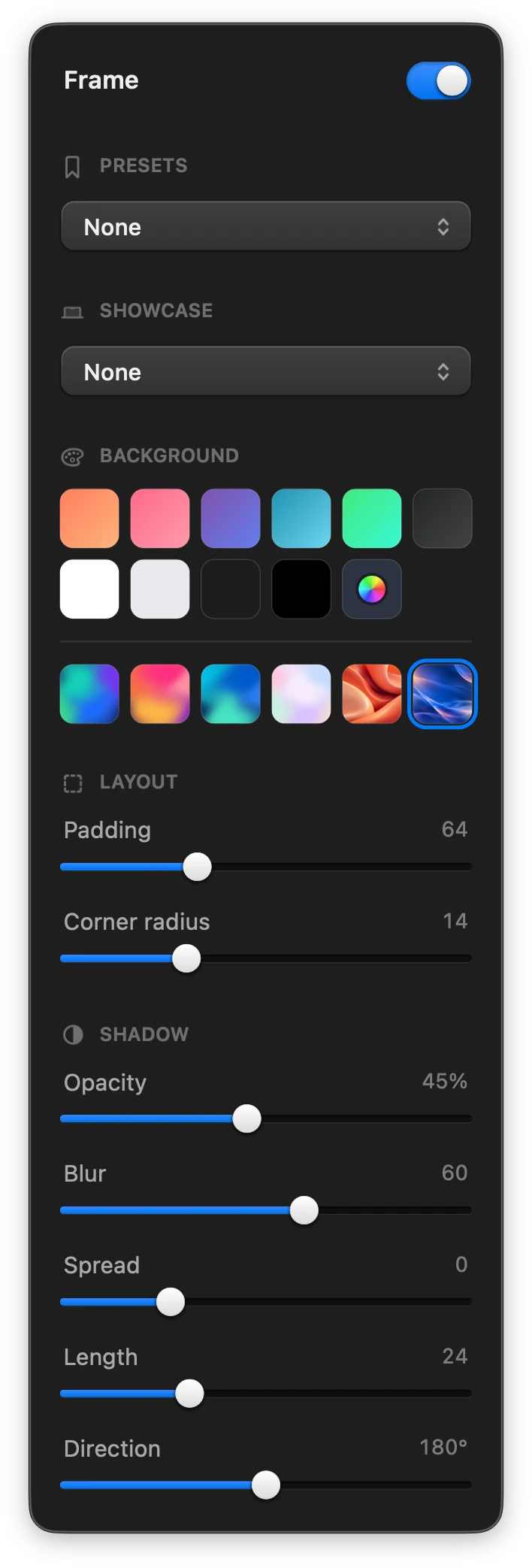
Frame it beautifully. Backgrounds, padding, corners and a soft shadow.

Clap’s Frame panel: presets, showcase, backgrounds, padding, corner radius, shadow

Crop

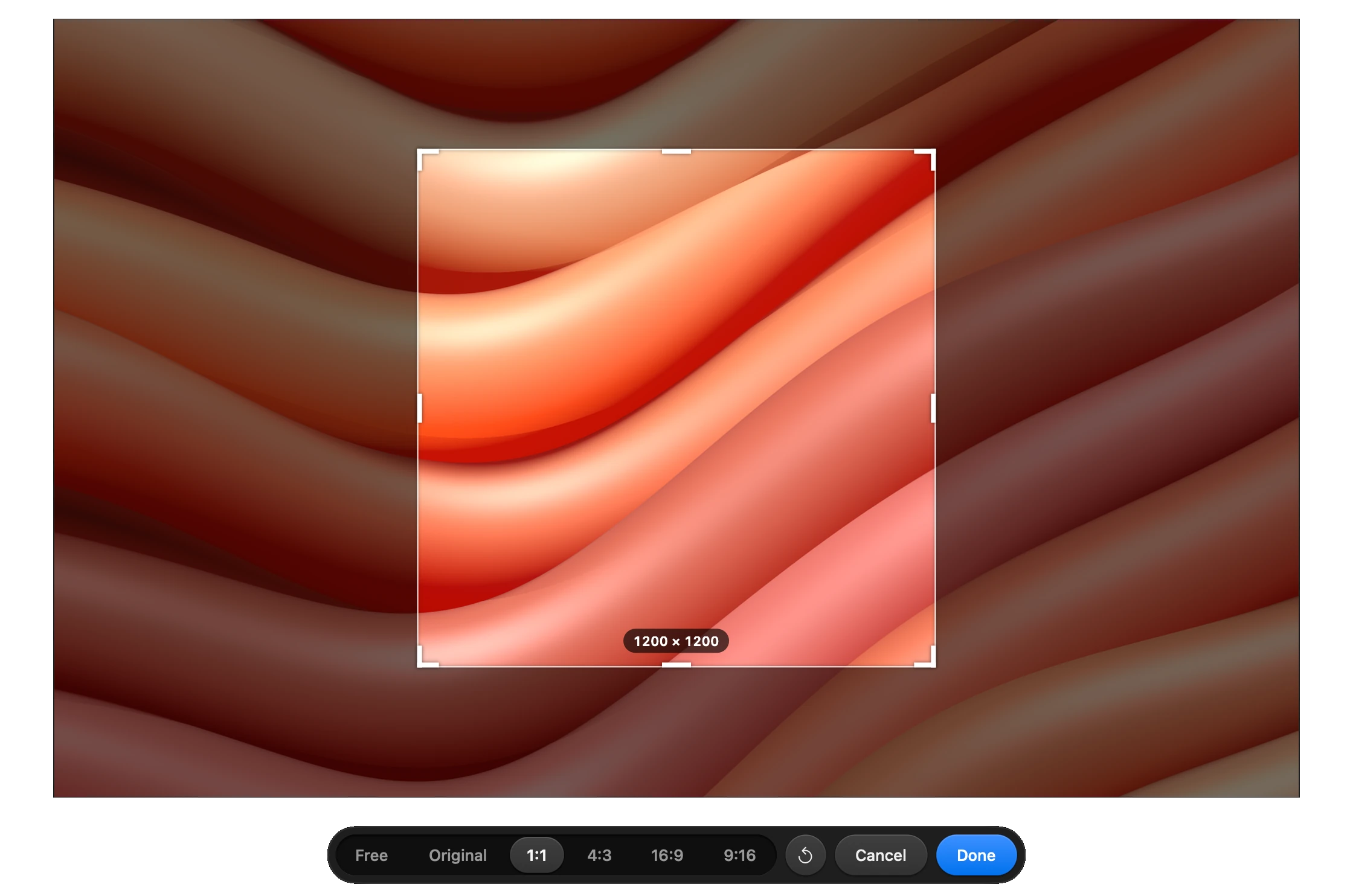
Crop to any shape. Free, square, 4:3, 16:9 or tall for phones, to the pixel.

Cropping in Clap: a square box over the screenshot, its size in pixels, and the crop bar’s shapes

Record

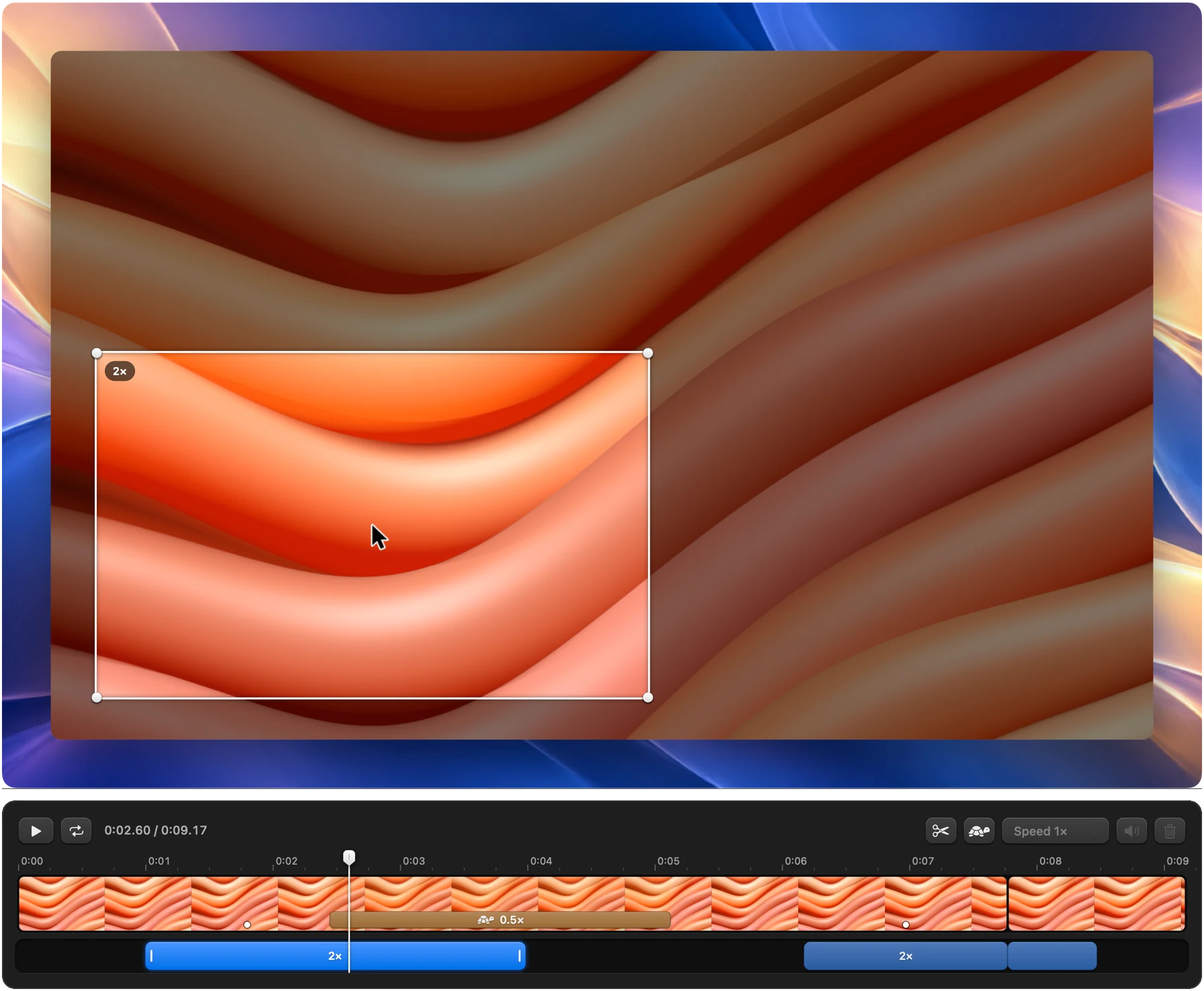
Record, and Clap does the editing. It zooms in on every click, smooths the pointer and slows down what matters.

Clap’s recording editor: a zoom drawn over the recording, and the timeline with its zooms and a slow-mo

Scrolling capture

Whole pages at once. Scrolling captures of Chrome, Safari and most other apps.

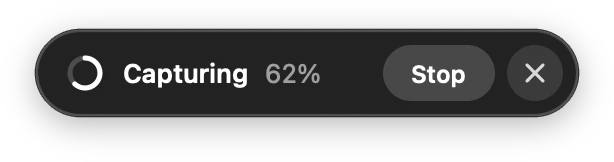
A page in a browser window being capturedClap capturing the whole page: 62%, Stop

Showcase

Show it off. Put it in a window or a browser, or on a MacBook or an iPhone.

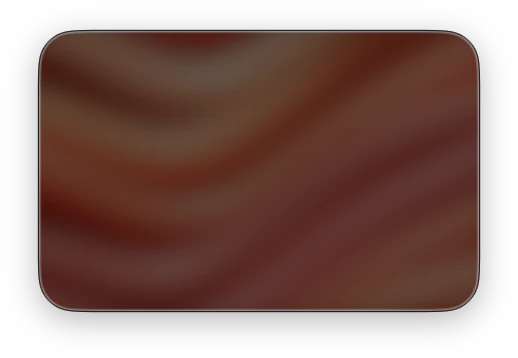
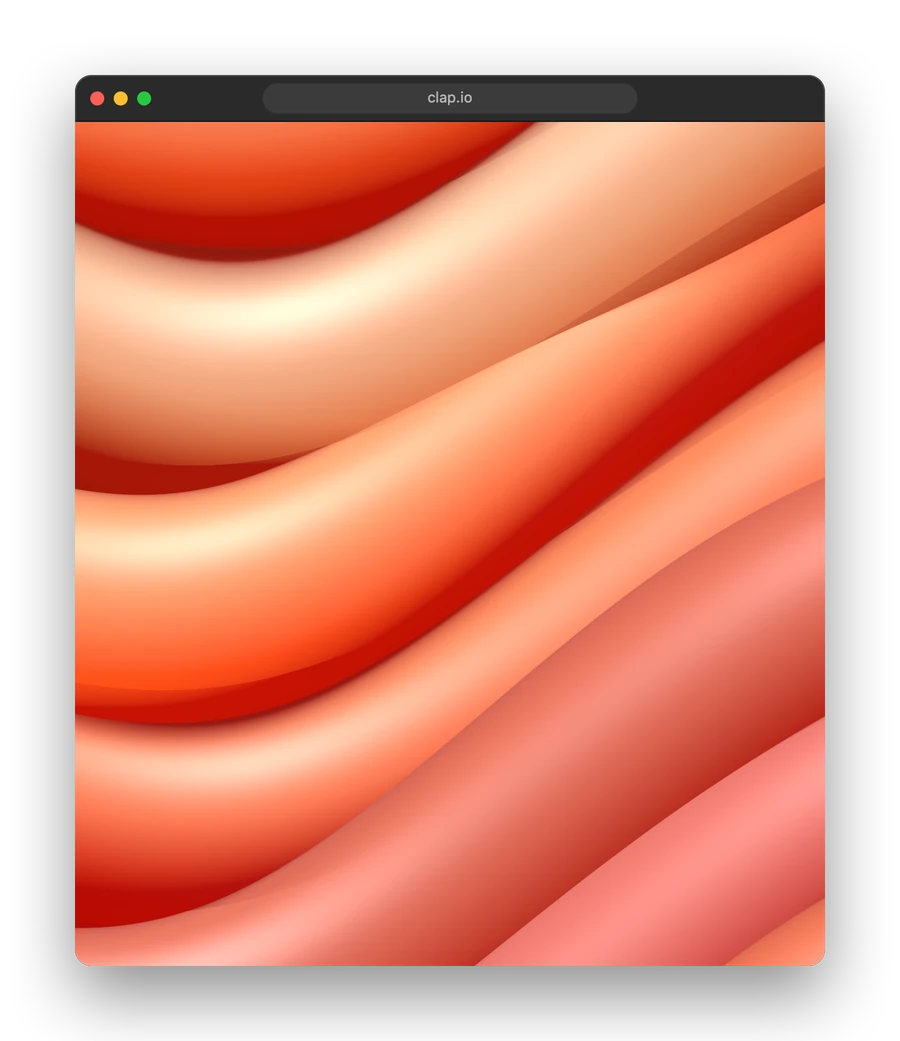
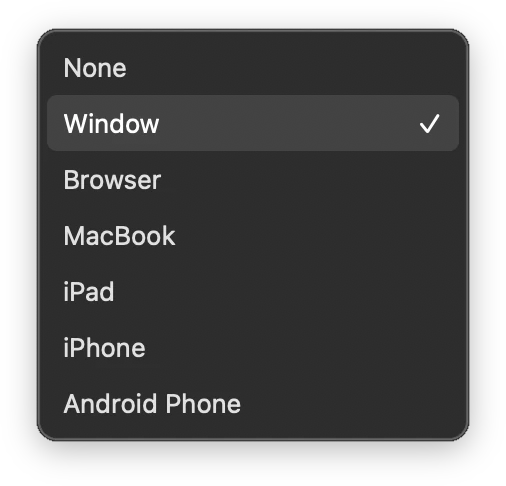
A screenshot in a window, as Clap saves itClap’s Showcase menu, Window chosen

Mac and Windows

The same Clap on both.

The same captures, editors and shortcuts on a Mac or a PC. Your plan moves with you, one computer at a time.

The Scratch Pad

An endless canvas, free.

Pull your recent captures down past the shelf: sketch, lay them out, jot a note, and copy it all for your agent.

One app

Screenshots and video, together.

A screenshot editor and a video editor that zooms in on your clicks, in one app, free for screenshots.

Mark it up like a canvas.Every mark moves, snaps and turns.

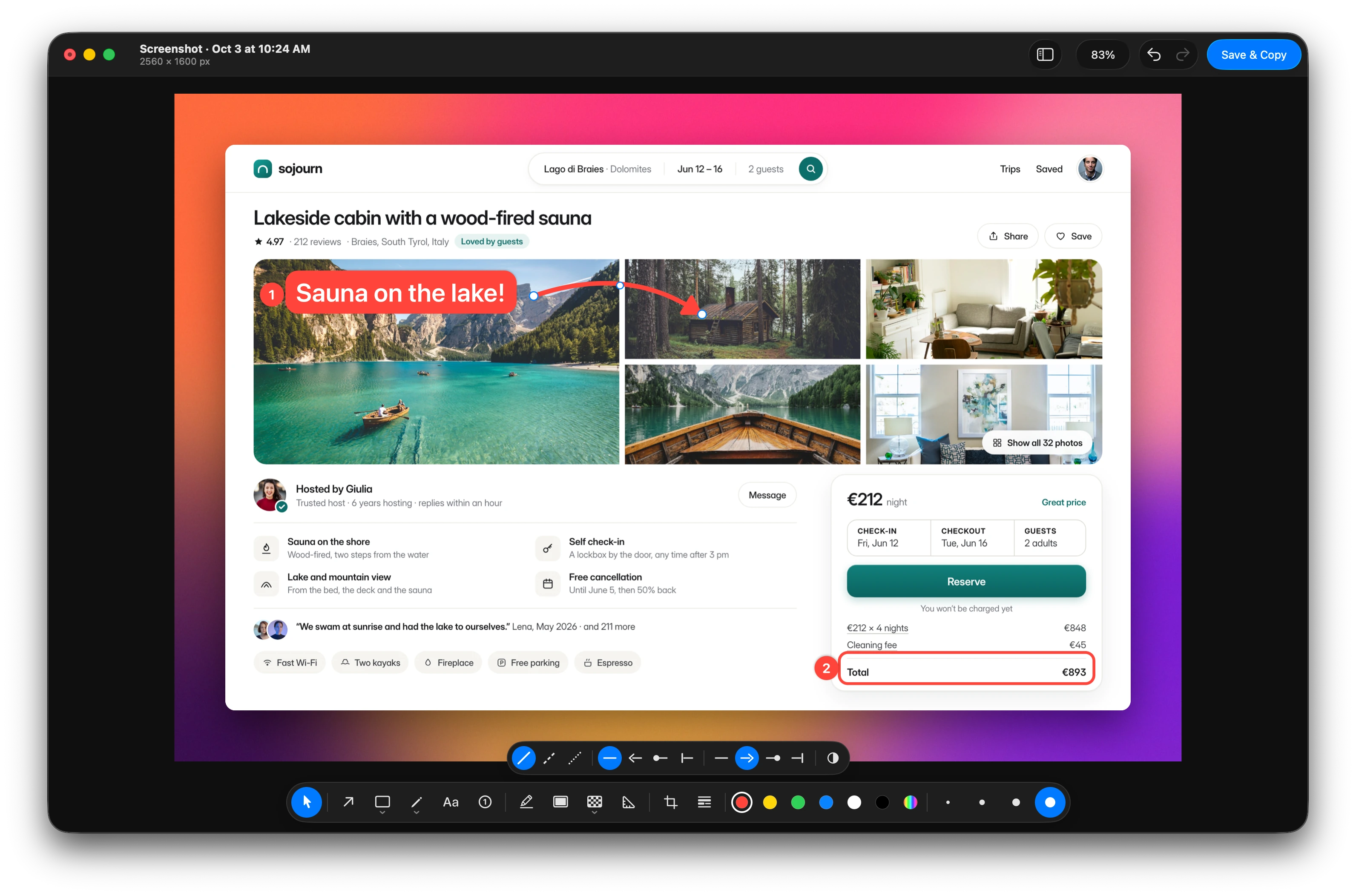
Clap’s screenshot editor window: a travel site’s page for a lakeside cabin, framed on a sunset gradient and marked up with “Sauna on the lake!” on a red pill with step 1, a curved arrow to the cabin, step 2 and a box round the total; the arrow’s styles above the tools.

Numbered steps, text on a shadow, a pill or outlined, spotlights, pixelate and measures. Pick any mark with any tool, and undo goes back through marks, frame and crop alike.

Lay it all out on the Scratch Pad.Your captures on an endless canvas.

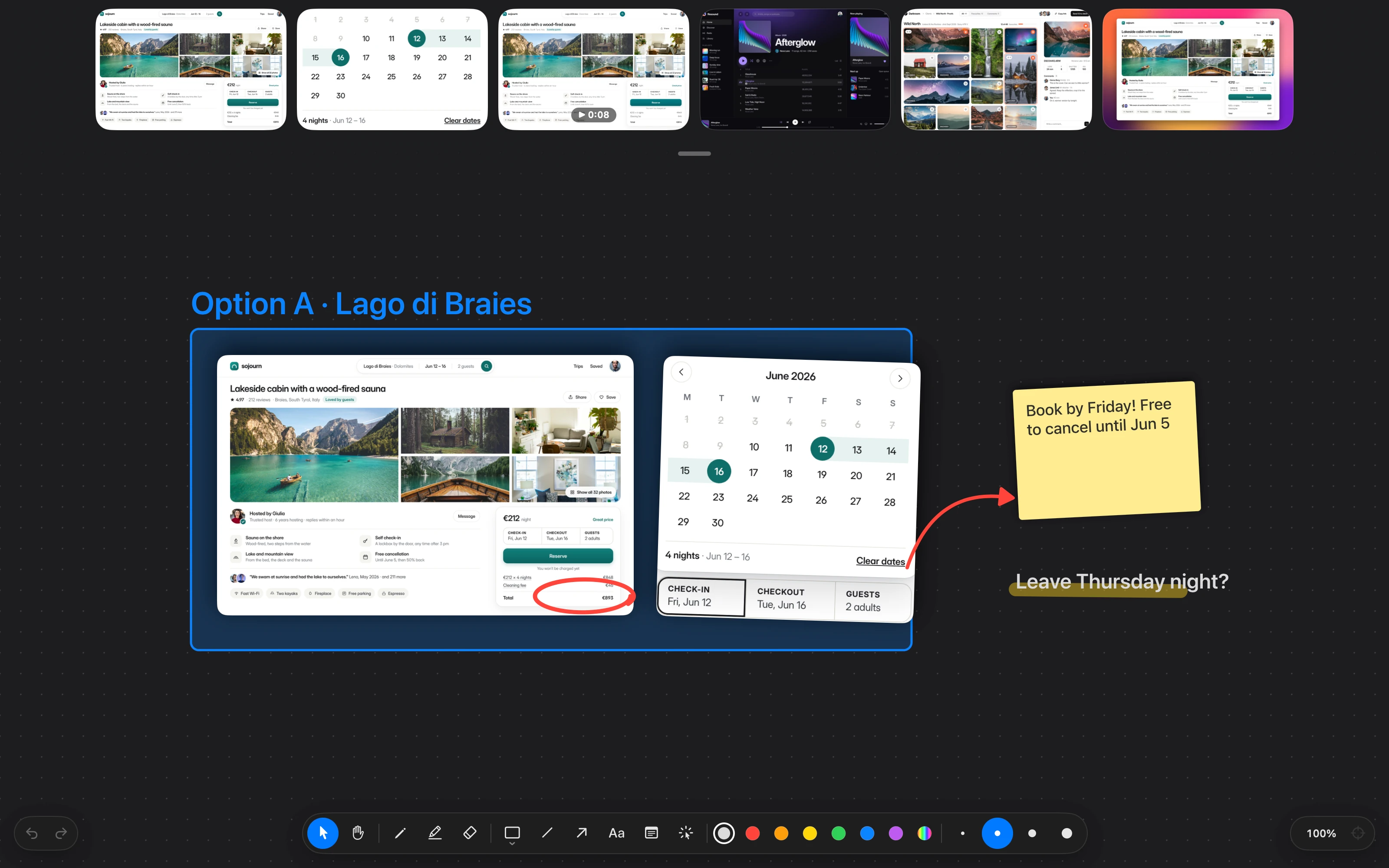
Clap’s Scratch Pad, dark, pulled down under the shelf of recent captures: “Option A · Lago di Braies” over two captures dropped in and boxed together (a lakeside cabin’s page and its dates picker), the total circled in red, an arrow to a sticky note saying “Book by Friday! Free to cancel until Jun 5”, and “Leave Thursday night?” highlighted; the pad’s tools below.

Pull your recent captures down and keep going. Drop them in, sketch round them, box them together, add a sticky note, then copy it all out, trimmed to what you drew.

Free for screenshots.Studio for everything else.

Free

$0

Screenshots, marked up and framed beautifully. Free, for good.

Download for MacDownload for Windows
  • Screen, region or window
  • Arrows, steps, text and blur
  • Frames and backgrounds
  • The Scratch Pad
  • Image links, 100 MB

Studio

$59a year

$4.92 a month, billed yearly

Recordings, the video editor and whole pages, shared in a click.

Get Studio
  • Everything in Free
  • Screen recording
  • Video editor, auto zooms
  • Scrolling captures
  • Copy text from screen
  • Window and device showcases
  • 1 TB of links, videos too
  • 1-click sharing, your brand

Lifetime

$149one time

Studio's tools, yours for good. Pay once, no renewals.

Get Lifetime
  • Everything in Studio
  • Lifetime updates
  • 1 GB of links, videos too
  • One payment, no subscription

Good questions.Straight answers.

Screenshots and the whole screenshot editor: marking up, blurring, cropping and framing, with no account and no time limit. Sign in with a free Clap account and you can share images as links too, up to 100 MB.

Screen recording and the video editor with its automatic zooms, scrolling captures, copying text from the screen, showcases in windows and on devices, 1 TB of links (videos too) and 1-click sharing with your own brand on the page. Hiding emails, keys and card numbers in a screenshot in one click, and GIFs of your recordings, too.

Yes. Studio is $8 a month, or $59 a year, which saves 38%. Cancel whenever you like from Manage subscription at the foot of this page, and Studio stays on until the end of what you’ve paid for.

No, Studio comes with it. Sign in with UI8 in Clap and everything unlocks. On a lifetime pass, links have 1 GB of space.

It has all of Studio’s tools and every update, for one payment. Its links have 1 GB of space rather than Studio’s 1 TB.

Macs with Apple silicon, on macOS 15 Sequoia or later, and PCs with Windows 11 or Windows 10 (version 2004 or later), 64-bit.

Clap for Windows is code-signed by Robot Global FZCO, but its signature is new, and Windows only fully trusts a new one once enough people have installed the app. If it says it protected your PC, click More info (it names Robot Global - FZCO as the publisher), then Run anyway. It’s safe, and the warning fades out as more people install Clap.

Your plan works on one computer at a time, Mac or PC: sign in on another and it moves there, signing the first one out. Screenshots work on any computer without signing in.

They keep working for 30 days. After that, your newest images that fit in the free 100 MB stay up, and the rest are deleted.

In Safari and most apps on a Mac or PC, Clap scrolls the page itself. In Chrome, on either, it uses Clap’s free extension, Clap Scrolling Capture.

Your screenshots and recordings stay on your computer, and text is recognised right on it. Only what you share is uploaded, and its link isn’t listed or indexed anywhere. Delete it from Clap’s menu and the link stops working. More in Privacy.

Captions and summaries for recordings, and hiding faces before you share. And an MCP server, so Claude, Codex and other AI agents can take captures, read your screen and share links through Clap, with you in charge of what they see.

Something else? Write to hello@clap.io

Try Clap today.Screenshots are free, for good.

For Macs with Apple silicon on macOS 15 or later, and PCs with Windows 10 or 11.

Your download has started

Clap for Windows is signed, but its signature is new, so Windows may ask before running it. Installing takes a few seconds.

  1. 1

    Open Clap Setup from your downloads.

  2. 2

    If Windows says it protected your PC, click More info, then Run anyway.

  3. 3

    Clap installs and opens. No admin rights needed.

Why the warning? Clap is signed by Robot Global FZCO, and Windows only fully trusts a new signature once enough people have installed the app. It’s safe to install, and the warning fades out as more people do.

What’s new

Hide the cursor

A new Hide cursor switch in the recording editor’s Cursor tab takes the pointer out of your video.

  • Turn it on and the cursor is gone from the preview and from every video and GIF you save, copy or share. Zooms still follow it, and click ripples stay their own switch.
  • It works at every size, 4K included. New 4K recordings take a few seconds to finish saving after you stop.
  • 4K recordings made before this update have the cursor in the picture, so the switch is off for those.

A steadier Scratch Pad

Sticky notes, text and emoji on the Mac’s Scratch Pad now behave the way you’d expect.

  • A sticky note stays on the pad the moment you let go of it, and you can see it while you type.
  • Text looks exactly the same while you edit it as at rest: no jump in size, weight or position.
  • Choosing an emoji from the emoji picker no longer closes the pad, and emoji stay on the pad after you stop typing (and in copies and saved pictures).
  • On Windows, text on a pill or with an outline keeps its colour while you type.

Big Chrome pages at 4×, whole

A 4× screenshot of a big Chrome page could come out with parts missing: Chrome quietly dropped what didn’t fit in its graphics memory. Clap for Chrome 1.5 now redraws big pages in strips and Clap joins them. On the Mac and on Windows.

  • A page too big for 4× in Chrome is saved at 3× (or 2×), and the card says so.
  • Sharpness 3× and 4× are for region, window and full-screen screenshots. Scrolling captures stay at 2×, so the Sharpness switch left Clap for Chrome’s popup; it lives in Clap’s menu.
  • A full-screen screenshot is redrawn too when a Chrome page fills the screen.
  • If Chrome has switched Clap for Chrome off, Clap now says so and how to turn it back on in chrome://extensions.

Updates that install themselves

New versions of Clap now download in the background. When one is ready, Clap asks once: restart now, or later and it installs the next time you quit. On the Mac and on Windows.

  • A smoother first run: after the Screen Recording step, the Mac says you’re set and shows the shortcut, and your first screenshot no longer asks for Accessibility. Keeping menus open while you select is now optional, in Settings › General.
  • On Windows, Clap shows where its icon lives and can keep it next to the clock.
  • Install updates automatically can be turned off in Settings › About.

Scrolling captures with every Clap for Chrome

Clap 1.4 turned away Clap for Chrome 1.2 until Chrome updated it. Now both versions work, on the Mac and on Windows.

  • If Chrome switched Clap for Chrome off after its update, turn it back on in chrome://extensions: Chrome asks once before an extension gets a new permission.

Chrome pages at 4× the detail

Screenshots of Chrome pages can come out redrawn at 3× or 4×, crisp enough for 4K mockups and big screens. On the Mac and on Windows.

  • Choose Sharpness 2×, 3× or 4× in Clap’s menu. Region and window screenshots of a Chrome page are redrawn at that density by Clap for Chrome 1.4, and the card shows a 4× pill.
  • Everything else, and any page Chrome can’t redraw, keeps your screen’s own pixels, and the card says so.
  • Clap for Windows is now code-signed by Robot Global FZCO.

A crosshair that keeps up

Region capture now follows your mouse in real time, on the Mac and on Windows.

  • The crosshair, its guides and the size label stay right under your pointer, even with a 1,000 Hz gaming mouse on a 240 Hz display.

An editor as free as the Scratch Pad

The screenshot editor now runs on the Scratch Pad’s canvas, you can draw on your recordings, hide private text in one click and save GIFs. Studio comes monthly too, and you can try it free for 7 days. On the Mac and on Windows.

The screenshot editor

  • Every mark is a thing you can pick, move, stretch, turn, snap into line and group, and copy to and from the Scratch Pad.
  • New marks: numbered steps that count themselves, plain lines, and text that’s plain, shadowed, on a pill or outlined.
  • A style bar above the dock for whatever’s in hand or picked: dashes, arrowheads, fills, corners and opacity.
  • Tools stay in hand, any tool picks what’s under it, and one undo covers the marks, the frame and the crop.

Draw on your recordings

  • Press D in the video editor and draw arrows, shapes, steps, text, highlights and spotlights right on the video. Each one appears at the playhead and fades out a few seconds later.
  • Blur and pixelate hide what’s under them on every frame, and never fade.
  • Marks drawn together get their own bar on the timeline: drag it, trim its ends, and it snaps into place.

Private text, copied text

  • Hide Emails, Keys and Numbers pixelates every email, phone number, card number, API key, token and IP address in a screenshot, in one click and one undo.
  • Right-click a screenshot and choose Copy Text in the Picture to put all its text on the clipboard.

Save as GIF

  • Pick GIF in the video editor’s size control, at 10, 15 or 24 fps. It’s saved at your recording’s own size, pixel for pixel, and copied ready to paste.

Plans and sharing

  • Studio now comes monthly, at $8 a month, or yearly, at $59 a year.
  • Try everything in Studio free for 7 days, right in Clap.
  • Shared videos unfurl with a picture wherever links preview, like Slack and X.

Hiding sensitive text, Copy Text in the Picture, drawing on recordings and GIFs come with Clap Studio.

Smoother scrubbing

Dragging the playhead in the video editor now keeps up with your pointer.

  • The preview plays smoothly as you scrub, forwards and backwards, and new recordings scrub backwards faster.

Fixed

  • On the Scratch Pad, text, sticky notes and shapes’ labels show the moment you finish typing.
  • Screen recordings now include the Scratch Pad and your recent captures when they’re open.

Clap for Windows

Everything Clap does on the Mac, now on Windows: the same captures, the same editors, the same plans. Your plan moves between your Mac and your PC, one at a time.

The same Clap

  • Screenshots of the full screen, a region or a window, marked up, framed and shared in a click.
  • Recordings at 60 fps (120 on a fast screen) with your voice, your PC’s sound and your camera, and the video editor that zooms in on your clicks.
  • Whole scrolling pages in Chrome and most Windows apps, the Scratch Pad, recent captures and copying text off the screen.

Made for Windows

  • Lives in the taskbar’s corner, starts with Windows if you like, and updates itself.
  • Installs for you alone, in seconds, with no admin rights needed.
  • For Windows 11 and Windows 10 (version 2004 or later), 64-bit.

The Scratch Pad

An endless canvas over your screen, for sketching an idea, laying out captures or jotting a note. It’s free.

The Scratch Pad

  • Pull your recent captures all the way down from the menu bar, or press ⌃⇧0, and the pad comes down over your screen.
  • Sketch with the pen, draw shapes and arrows that stick to them, type notes, and drop in captures and pictures.
  • Things snap into line and to equal spacing; group them in a container and they move together.
  • Copy or save any part of it as a picture, at 1×, 2× or 3×, on the pad’s colour, white, black or transparent.

Recent captures

  • Pulling them down follows your pointer more closely, and pulling further opens the pad.

You on camera, your captures a pull away

Two days after launch, Clap records your face with your screen, brings your latest captures down from the menu bar, and edits video faster. Here’s everything new since then.

Your camera

  • Turn on Record Camera in Clap’s menu and you appear in a bubble, with your voice and your Mac’s sound recorded together. The file is ready the moment you stop.
  • In the video editor’s Cam tab, drag the bubble anywhere, resize it and pick its shape: a circle, a rounded square, portrait or landscape. Set your voice and your Mac’s sound apart.
  • Pop out: your head rises out of the bubble, with Head above and Zoom to tune it.
  • Animate it: move the playhead, drag the bubble, and it glides between the places you set.
  • A × on the camera preview turns the camera off for this recording and the next ones. Recordings wait for the camera to settle, so you never fade in from dark.

Recent captures

  • Press ⌃⇧`, or pull down an empty part of the menu bar, and your latest captures come down from it, big.
  • Copy, share, edit or move one to the Trash right there, or drag it into any app to send the file.
  • Videos show their length, and a trackpad or a mouse wheel scrolls through them all.

Record and edit

  • While you record, a pill at the bottom of the screen shows the time, with Pause and Stop.
  • Select several clips or zooms with ⌘-click, or hold ⌘ and drag over them, then change their speed, depth or sound all at once.
  • Trimming a clip resizes the whole timeline as you drag.
  • The video’s frame keeps the same padding on every side, just like the screenshot editor’s.

Your account

  • Sign in with your email (a code, no password) or with UI8, and get Studio or Lifetime right here on clap.io. Your plan shows in Clap’s menu and Settings.

Privacy

  • Clap shares anonymous usage data so we know what to improve, never what you capture. Turn it off any time in Settings → General → Privacy.

Fixed

  • A recording with the camera on no longer stops by itself with “couldn’t record”.

Clap is live

Clap 1.0 is here: screenshots, screen recordings and whole scrolling pages, with an editor that makes every one of them look its best. Here’s everything it does on day one.

Capture

  • The full screen, any region or a single window, each a shortcut away. Hold ⌥ to leave a window’s shadow out, or ⌘ to take just its page or content.
  • Whole scrolling pages in Safari, Chrome and most Mac apps, stitched into one tall image.
  • Copy the text from anything on your screen, recognised right on your Mac.
  • Every capture is copied and saved, and waits in a card you can drag into any app.

Mark up

  • Arrows, boxes, highlights, a pen and text, in six colours and four sizes.
  • Spotlight what matters, and blur or pixelate anything private.
  • Measure in real pixels, crop to any shape and zoom right down to the pixel grid.

Frame and showcase

  • Gradients, colours or your own pictures behind it, with padding, rounded corners and a soft shadow.
  • Show it off in a window, a browser, a MacBook, an iPad, an iPhone or an Android phone.
  • Save a look as a preset and use it again.

Record

  • Record the full screen, a region or a window at 60 or 120 fps, with your Mac’s sound or your microphone.
  • Record a whole page scrolling smoothly from top to bottom.
  • The video editor zooms in on your clicks by itself and draws a smooth pointer. Split, trim, speed up, slow down and crop.
  • Save at 1080p or 4K, wide, square or vertical.

Share

  • Share any capture as a link, copied and ready to paste.

Made for your Mac

  • Lives in the menu bar, with your latest captures a click away.
  • Change any shortcut, or drive Clap from Raycast, Shortcuts and your own scripts.
  • For Macs with Apple silicon, on macOS 15 or later.

Screenshots and the screenshot editor are free. Recording, the video editor, scrolling capture and copying text come with UI8 All Access.